# Permissions
Generated: 2026-09-13T04:33:13.136Z
Source build: local
Canonical docs: https://teammately.ai/docs
---
id: reference.permissions
title: Permissions
summary: Understand the user-facing permission boundaries for projects, reviewers, settings, and expert UI access.
kind: reference
product_area: reference
status: stable
updated: 2026-09-07
canonical: /docs/reference/permissions
---
# Permissions
## Definition
Permissions describe the user-facing access boundaries that affect projects, reviewer work, settings, Expert UI access, and organization administration. Use this page to decide which access surface to inspect before diagnosing a blocked workflow.
This reference does not turn role labels into a complete public permission matrix. Exact permission behavior should stay tied to source-backed pages and the admin or project surfaces that expose it.
## Fields, states, or lifecycle rules
- Project access affects cases, standards, coverage, benchmark work, and project settings.
- Reviewer access affects assigned expert work and reviewer-facing surfaces.
- Organization administration affects members, groups, roles, security controls, API keys, and integrations.
- Role labels in docs should be treated as understandable operating labels, not as exhaustive permission contracts.
- Do not infer auth, security, compliance, tenant isolation, or billing guarantees from this reference.
## Related objects
Permissions should be read with [Admin Console](/docs/admin-console), [Workspaces and projects](/docs/concepts/workspaces-projects), [Permissions troubleshooting](/docs/troubleshooting/permissions), and [Reviewer and project access](/docs/governance/reviewer-and-project-access).
{% example-demo title="Permissions boundary" %}
Symptom: A reviewer can sign in but cannot complete assigned case review.
Permission boundary: The issue may be reviewer assignment, project access, Expert UI routing, or missing case context.
Interpretation: Diagnose access and assignment before changing cases, standards, or benchmark evidence.
{% /example-demo %}
## Source confidence
Code-backed: Project, user, and workspace types plus Project Permissions and Members surfaces support the user-facing boundaries described here. They do not form an exhaustive authorization matrix; assignment, organization administration, and object approval remain separate product states.
## Related task pages
{% related-card-grid title="Related task pages" %}
- [Admin Console](/docs/admin-console)
- [Workspaces and projects](/docs/concepts/workspaces-projects)
- [Permissions troubleshooting](/docs/troubleshooting/permissions)
- [Expert UI](/docs/integrations/reviewer-workspace)
- [Product quickstart](/docs/quickstart)
{% /related-card-grid %}
---
id: admin-console.overview
title: Admin Console
summary: Understand the organization-level administration surfaces available at admin.teammately.ai.
kind: reference
product_area: admin_console
status: stable
updated: 2026-09-07
canonical: /docs/admin-console
---
# Admin Console
The current Teammately product exposes the Admin Console as a workspace-administration mode under `/admin`. Use this page to distinguish organization-level administration from project-level correctness work in the project workspace. The shared product shell switches between project navigation and workspace administration while preserving the organization-level boundary.
> Administration boundary
>
> Use the Admin Console for organization controls. Use project and benchmark workspace docs for Cases, Expert Contributions, Policies, Rubrics, coverage, evaluations, and improvement evidence.
## Definition
The Admin Console groups organization administration into Directory, Security, Insights, and Organization Settings. The code-backed navigation includes Members, Groups, Roles & Permissions, Domain Control, IP Address Control, Audit Log, Usage Statistics, Profile, Support Settings, Integrations, and API Keys.
This page documents that those surfaces exist. It does not claim detailed compliance, billing, deployment, rate-limit, or security behavior unless a linked source file exposes that behavior directly.
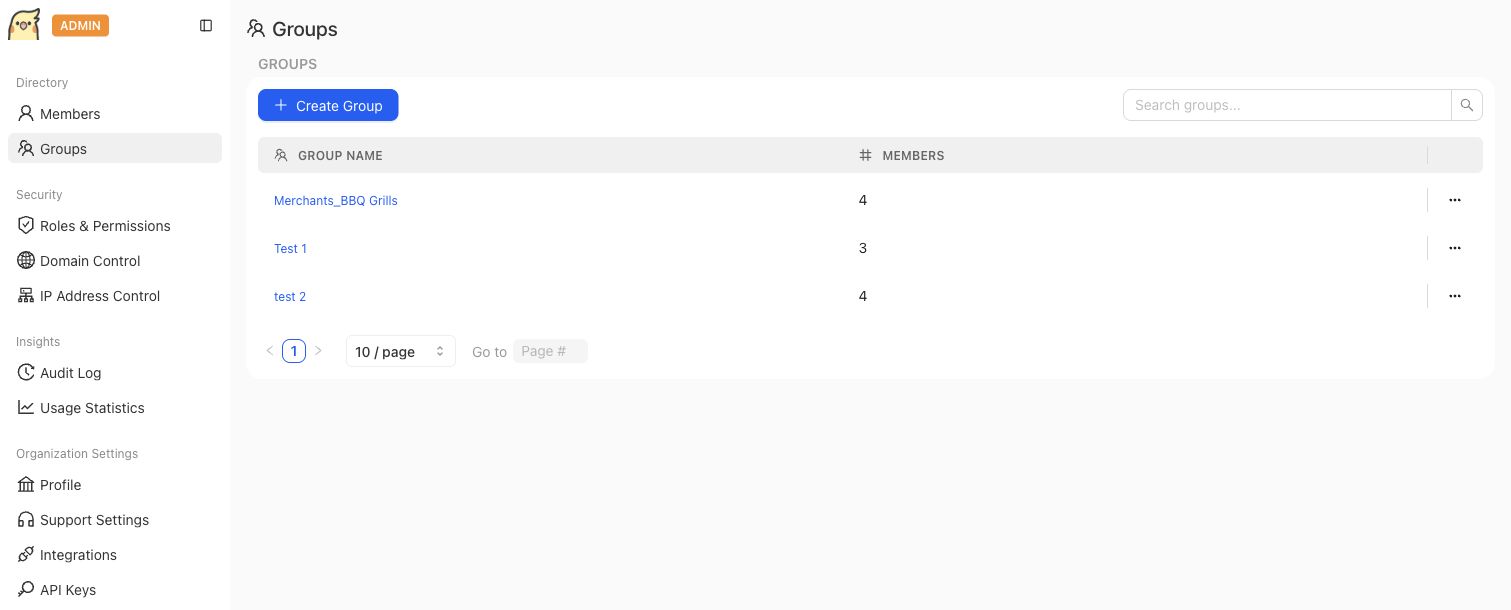
The Admin Console is the organization administration surface. Group management is separate from project-level correctness work.
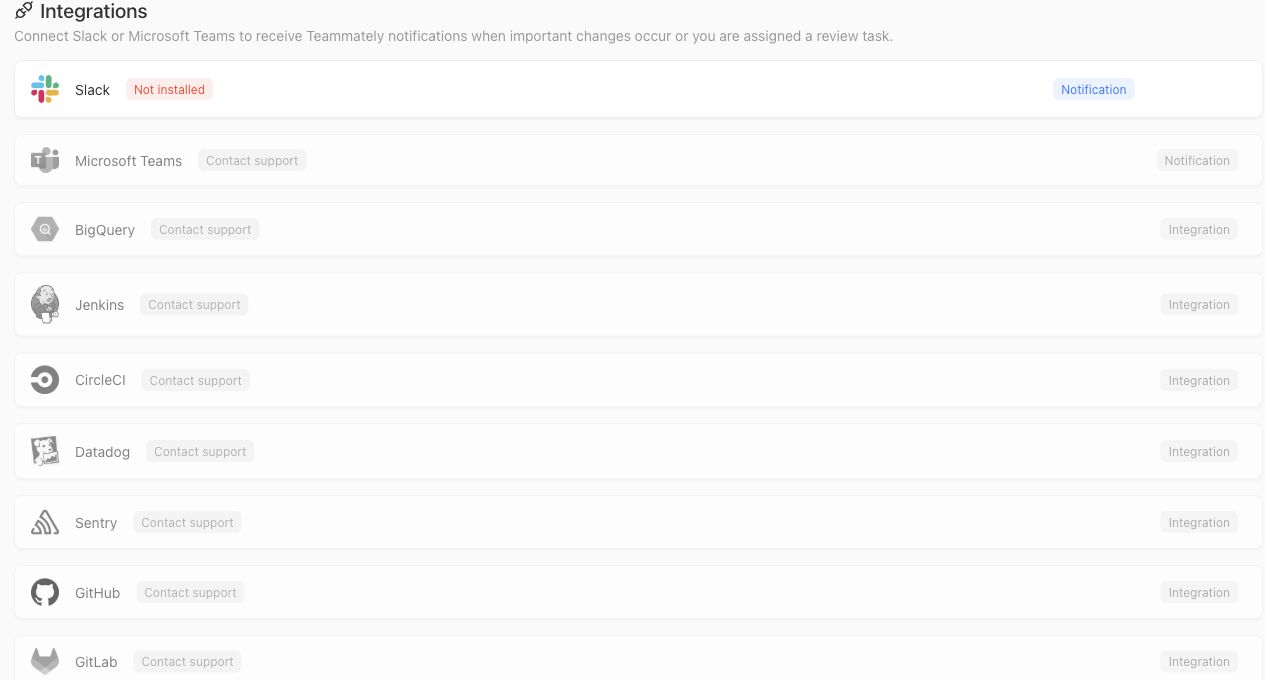
The Integrations screen shows notification and partner connection surfaces that belong to organization administration. Visible contact-support states should not be documented as self-serve integrations.
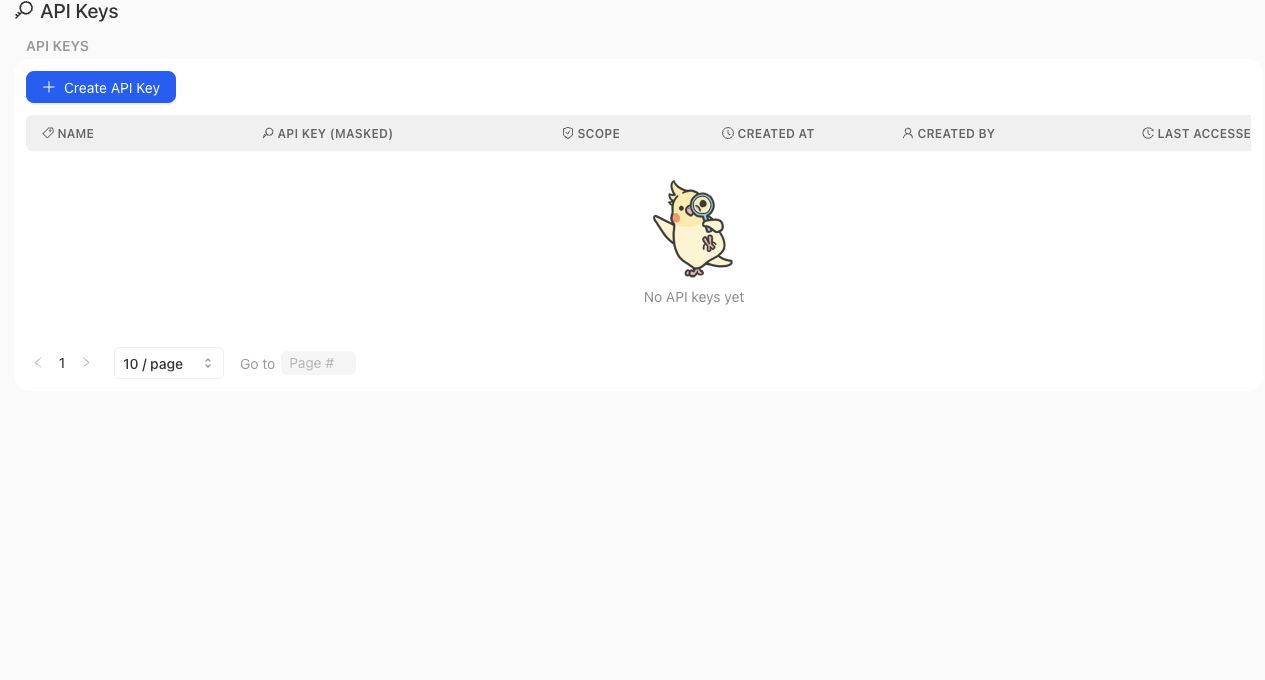
API Keys are managed in the Admin Console and should be documented as an organization administration surface, separate from project correctness artifacts.
> API key boundary
>
> Creating an API key establishes a credential; it does not make every internal endpoint a supported customer API. Endpoint availability, bearer authentication, required scopes, request and response schemas, and error behavior belong to the versioned Public API contract.
## Fields, states, or lifecycle rules
- Members and Groups are organization directory surfaces. Project-level membership and project permissions remain separate surfaces in the main product.
- Roles & Permissions in the Admin Console manage workspace roles and permission keys exposed by the admin application. Do not treat role names in orientation pages as exact permission contracts.
- Domain Control stores whether domain enforcement is enabled and which email domains are allowed for invitation.
- IP Address Control stores whether IP limiting is enabled and the configured allowlist.
- API Keys can be listed, created, copied at creation time, scoped, and deleted from the admin app surface. Treat the full value as a secret and create separate keys for separate integration boundaries.
- Slack is the currently clickable self-serve notification integration in the Admin Console. Microsoft Teams and the other listed partners are visible as contact-support or coming-soon surfaces in the current integrations index, so these docs should not describe them as self-serve integrations.
- Audit Log and Usage Statistics appear as admin console surfaces, but this page does not promise exact event schemas, retention periods, analytics definitions, or export behavior.
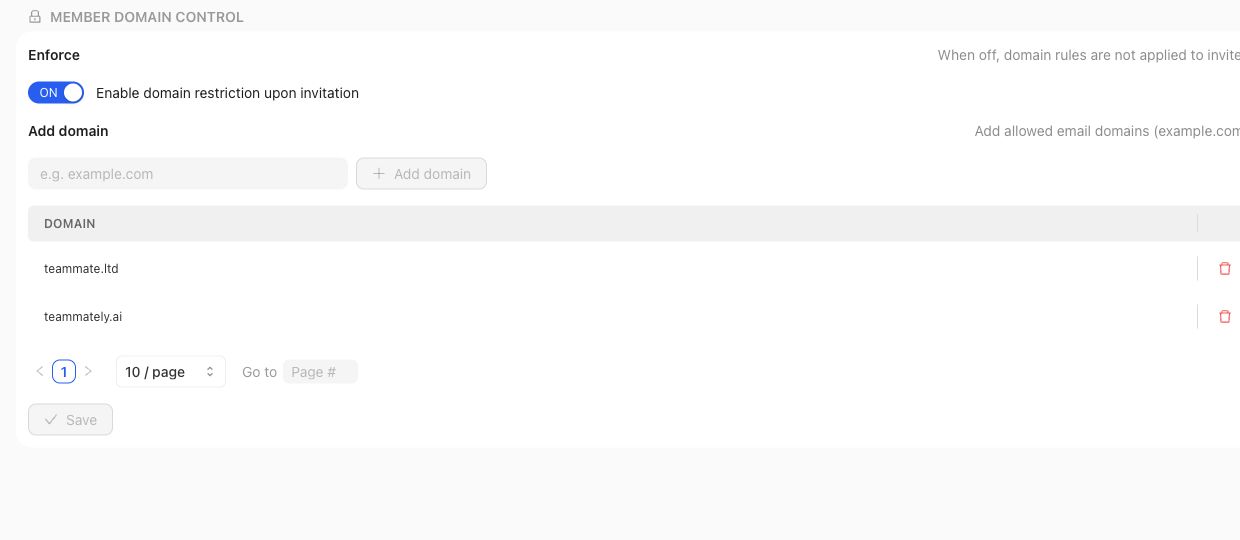
Domain Control and IP Address Control are organization-level security settings. They should not be described as project review or benchmark approval mechanisms.
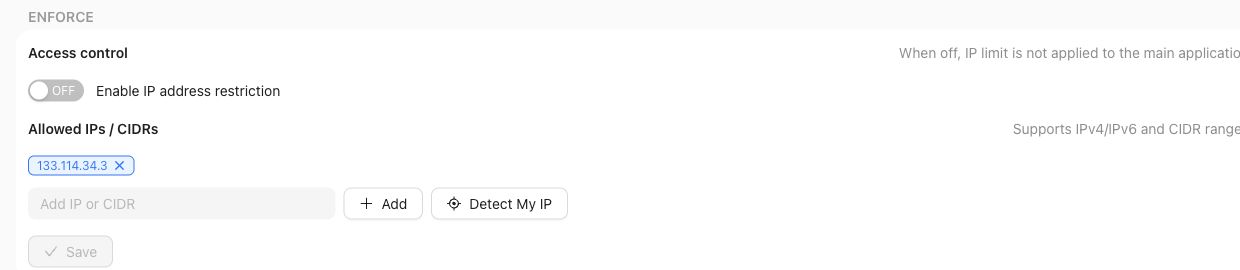
IP Address Control exposes enforcement settings and should be documented only as an admin access-control surface.
## Product boundary
Use the Admin Console when the question is about organization access, security controls, API keys, notification integrations, or organization-level activity. Use project settings and product-area docs when the question is about cases, reviews, policies, rubrics, benchmarks, and project-specific permissions.
A reviewer persona, a Project member, a Workspace role, and an organization administrator are related but not identical. Read each access or authority claim from its owning surface.
Likewise, an API key, its Project access, and an endpoint's action scope are related but not identical. Key administration belongs here; the external service contract must define what a caller can actually do.
## Source confidence
Code-backed: this page is grounded in the current `/admin` workspace route, shared navigation mode, admin directory, integrations index, and representative admin route implementations listed in the frontmatter source_refs.
## Related task pages
{% related-card-grid title="Related task pages" %}
- [Manage Project Members](/docs/project-settings/project-members)
- [Resolve an IP access restriction](/docs/troubleshooting/authentication)
- [Troubleshoot permissions](/docs/troubleshooting/permissions)
{% /related-card-grid %}
## Related reference pages
{% related-card-grid title="Related reference pages" %}
- [Workspace administration](/docs/governance/workspace-administration)
- [Roles and permissions](/docs/governance/roles-and-permissions)
- [Permissions](/docs/reference/permissions)
{% /related-card-grid %}
---
id: concepts.workspaces-projects
title: Workspaces and projects
summary: Learn how Teammately organizes teams, projects, product goals, and access boundaries.
kind: concept
product_area: object_model
status: stable
updated: 2026-09-07
canonical: /docs/concepts/workspaces-projects
---
# Workspaces and projects
## Definition
The Workspace is the organization-level container. A Project is the operating boundary for one body of correctness work: its Project Agent Brief, Coverage Facets, Cases, Policies, Rubrics, Harnesses, Agent Setup, Project Settings, and Benchmarks.
## Why it matters
The distinction matters because Workspace membership and Project participation are not interchangeable. A person can belong to the organization without having access to every Project, and a role label must not be treated as proof of a specific permission.
## Where it appears in the product
Project Settings exposes General configuration, Regime, Input Schema, and Project Members. Organization-level administration belongs to the Admin Console. Benchmark work remains nested inside the selected Project and reuses that Project's governed objects.
## Artifacts it affects
The boundary affects navigation, identifiers, membership, permissions, Project Agent Brief generations, Cases, governed standards, Harnesses, Benchmarks, Runs, and Contributions. Moving or copying artifacts between Projects is not implied by shared Workspace membership.
## Boundary check
When a user cannot reach an object, confirm the Workspace, Project ID, Project membership, and object-specific assignment separately. When an artifact appears reusable across Projects, verify its source context, owner, and correctness boundary before recreating it. Shared organizational membership is never evidence that two Projects use the same Cases, standards, or Benchmark Versions.
{% example-demo title="Same policy shape, different projects" %}
One Workspace contains a billing-assistant Project and a security-assistant Project. The teams may use similar Rubric-writing practices, but their Project Agent Briefs, Cases, Policies, Harnesses, reviewers, and Benchmark evidence remain project-scoped. A user who can administer the billing Project is not assumed to have the same access in the security Project.
{% /example-demo %}
## Related workflows
{% related-card-grid title="Related workflows" %}
- [Configure Project settings](/docs/project-settings)
- [Manage Project Members](/docs/project-settings/project-members)
- [Understand organization administration](/docs/admin-console)
- [Troubleshoot permissions](/docs/troubleshooting/permissions)
{% /related-card-grid %}
## Related reference pages
{% related-card-grid title="Related reference pages" %}
- [IDs and keys](/docs/reference/ids)
- [Permissions](/docs/reference/permissions)
- [Workspaces, Projects, and target systems](/docs/object-model/workspaces-projects-and-target-systems)
- [Project Context](/docs/agent-setup/project-context)
{% /related-card-grid %}
## Source confidence
Code-backed: Workspace and Project types establish the container boundary; Project Settings, Members, and Permissions expose the current project-scoped configuration and access surfaces. Organization-level behavior is intentionally left to the separately bounded Admin Console documentation.
---
id: troubleshooting.permissions
title: Permissions troubleshooting
summary: Separate Project membership from Expert Contribution assignment and readiness when an expert has no tasks available.
kind: error
product_area: troubleshooting
status: stable
updated: 2026-09-07
canonical: /docs/troubleshooting/permissions
---
# Permissions troubleshooting
Use this when project role, reviewer assignment, or approval ownership prevents someone from completing the intended work.
## Symptom
A user can access Teammately but cannot open the expected Project, or an expert reports **no tasks available** after opening their Contribution link. These symptoms belong to different owning surfaces.
## Likely causes
- The user or group is not listed under **Project Settings → Project Members**.
- The Contribution was requested for a different recipient.
- The Contribution exists but its next Task or Checkpoint is not ready.
- The current IP is blocked before Project membership is evaluated.
## Diagnostic checks
- Confirm that the user or group appears in **Project Members** for the intended Project.
- Open the Contribution from the sender-side Expert Contributions workspace and verify its recipient and status.
- Check whether the expert has an executable Task or Checkpoint, not merely whether the Contribution exists.
- If **Access Restricted** is visible, resolve the IP allowlist first.
## Fix
- Add the correct user or group under **Project Settings → Project Members** when Project access is missing.
- Correct the Contribution recipient through the owning Contribution workflow when the request went to the wrong person.
- Resolve lifecycle or readiness problems in Expert Contributions when access succeeds but no Task can be entered.
- Do not infer a permission from a role label or edit governed artifacts merely to make a control appear.
## Prevention
- Separate reviewer access from approval authority in review setup.
- Check assignments before launching a review session.
- Use a small pilot Contribution before assigning a larger specialist cohort.
- Keep project membership changes visible to review owners.
## Related task pages
{% related-card-grid title="Related task pages" %}
- [Request an Expert Contribution](/docs/expert-contributions/request-contribution)
- [Reviewer assignments and statuses](/docs/expert-contributions)
- [Using checkpoints](/docs/expert-contributions/complete-contribution)
{% /related-card-grid %}
## Related reference pages
{% related-card-grid title="Related reference pages" %}
- [Permissions](/docs/reference/permissions)
- [Roles and permissions](/docs/governance/roles-and-permissions)
- [Expert Contributions](/docs/expert-contributions)
{% /related-card-grid %}
## Source confidence
Code-backed: Project Members and the redirected Project Permissions route define current Project access management; Contribution status and runtime navigation distinguish access from executable-task readiness. The Access Restricted route defines the separate IP boundary.
---
id: integrations.reviewer-workspace
title: Expert UI
summary: Understand how experts receive assigned work and how expert-facing tasks, interviews, and checkpoints fit into Teammately.
kind: concept
product_area: expert_contributions
status: stable
updated: 2026-09-07
canonical: /docs/integrations/reviewer-workspace
---
# Expert UI
## Definition
Expert UI is the reviewer-facing experience for completing assigned Expert Contribution work. The main Teammately product defines the Contribution, selected benchmark context, intended expert, tasks, and Checkpoints. Expert UI presents the executable activities—such as structured questions, Case review, or an interview—and returns attributable answers and artifacts to that Contribution.
It is not a second correctness-governance workspace. Experts contribute judgment in context; project operators use the main product to inspect Contribution state and reconcile accepted learning into Cases, Policies, Rubrics, or coverage observations.
## Why it matters
Scarce specialists should not have to reconstruct the project or navigate the full benchmark workspace. The assignment packages the relevant Cases, sources, questions, and reason for asking. Keeping the resulting answers attached to task, session, expert, and Checkpoint identity makes later materialization explainable without turning every interaction into approved truth.
## Where it appears in the product
Experts enter through the reviewer-facing route supplied by an assignment. Runtime navigation selects the current executable task and preserves resume or terminal behavior. In the main product, **Expert Contributions** shows preparation, alignment, task materialization, assigned work, progress, Checkpoints, logs, and contributed artifacts.
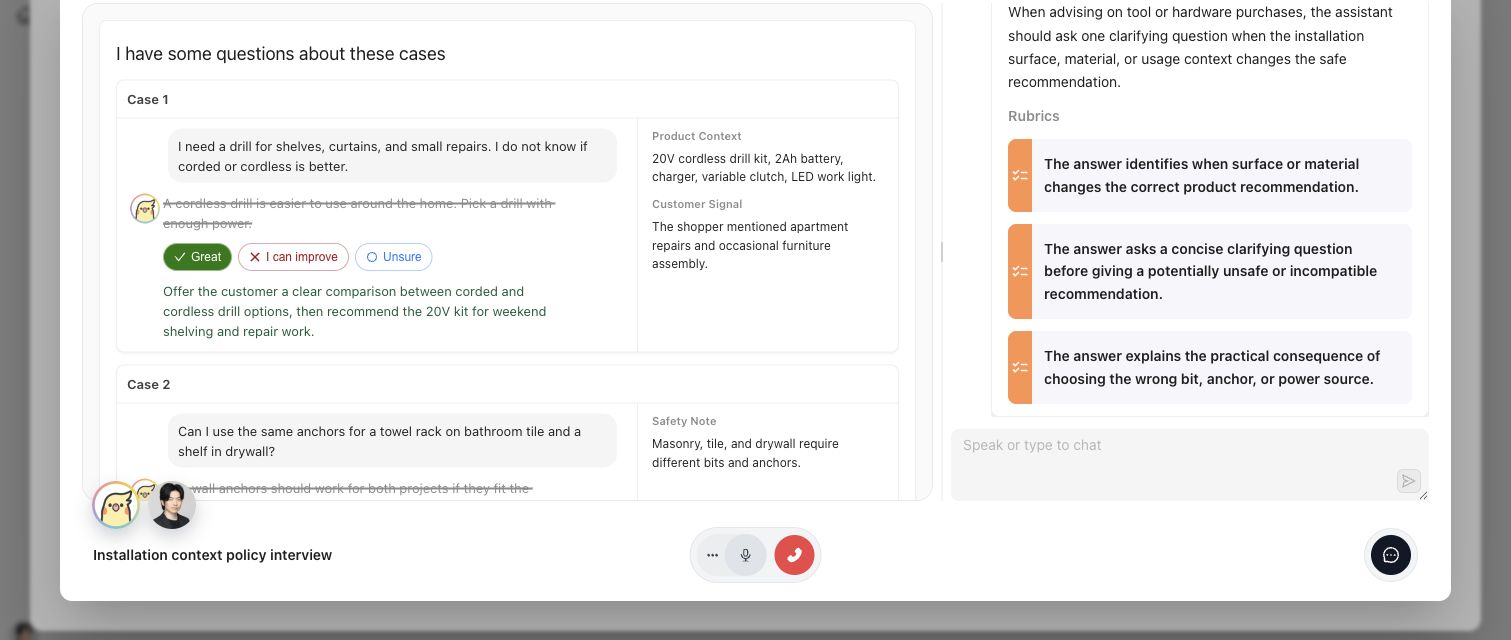
Expert UI keeps the Case, requested judgment, rationale, and relevant standards visible in one assigned activity.
## Artifacts it affects
An executable task contract identifies the Contribution and activity, presentation type, questions or Case context, allowed responses, and completion boundary. An expert answer can include rationale and suggested changes, but it is not automatically an approved Policy, Rubric, Case-scoped reference output, or Benchmark Dataset membership decision. Checkpoint and materialization state must be read from the owning Contribution.
## Operational check
Confirm that the expert is in the intended Project, the assignment opens the correct Contribution, the current activity displays the required source context, and submission reaches the expected completion or Checkpoint state. If the expert cannot answer from the supplied evidence, record that limitation rather than forcing a definitive judgment.
{% example-demo title="Interview returning governed learning" %}
A procurement specialist opens an assigned interview containing three Cases with conflicting source documents. The specialist explains which source controls, qualifies one unresolved exception, and confirms the proposed rule at a Checkpoint. Expert UI returns the attributed answers and state. In the main product, the Contribution materializes a Policy candidate and a coverage observation; neither becomes governed merely because the interview ended.
{% /example-demo %}
## Related workflows
{% related-card-grid title="Related workflows" %}
- [Correctness Elicitation](/docs/concepts/correctness-elicitation)
- [Expert Contributions](/docs/expert-contributions)
- [Complete an Expert Contribution](/docs/expert-contributions/complete-contribution)
- [Contribution Lifecycle and Status](/docs/expert-contributions/lifecycle-and-status)
- [Product quickstart](/docs/quickstart)
- [Task index](/docs/operating-manual/task-index)
{% /related-card-grid %}
## Source confidence
Code-backed: the main-product Contribution route and Review Screen establish assignment context, while the Expert UI executable-task and runtime-navigation contracts establish activity presentation, progression, resume, and terminal behavior. Linked Contribution pages define approval and materialization boundaries.