# Project Members
Generated: 2026-09-13T04:39:32.939Z
Source build: local
Canonical docs: https://teammately.ai/docs
---
id: project-settings.project-members
title: Project Members
summary: Grant or remove user and group access to a project while keeping task assignment and artifact governance separate.
kind: reference
product_area: project_settings
status: stable
updated: 2026-09-07
canonical: /docs/project-settings/project-members
---
# Project Members
## Definition
Project Members manages which workspace users and groups can access a project. A grant names a principal of type **USER** or **GROUP**; removing the grant removes that project-level access path.
Membership is not the same as selecting an expert for a Contribution, assigning a review task, or approving an artifact. Those workflows add scoped responsibility inside an already accessible project.
Before removing access, check whether the person or group owns active Contribution work or operational follow-up. Reassign that work first; this page does not define what historical records remain visible after access changes.
## Fields, states, or lifecycle rules
- A grant targets a user or group principal.
- Adding a grant creates a project access path.
- Removing a grant removes that current Project access path.
- Effective access can remain through another user, group, or workspace-level path.
## Manage access
1. Open **Project Settings → Project Members**.
2. Review existing principals and whether each grant belongs to a user or group.
3. Add the smallest appropriate principal. Prefer a managed group when access follows a durable team responsibility.
4. Before removing a grant, check active Contributions, reviews, and operational ownership that may need reassignment.
5. Confirm the resulting member list and test the intended product path through ordinary authorization.
Group access follows the group relationship managed by the workspace; it should not be duplicated as many individual grants without an operational reason. A user can also have more than one access path, so removing one grant may not remove all effective access.
> Access boundary
>
> Grant the smallest appropriate project scope. Do not copy credentials or sensitive material into project content as a substitute for access control.
Project access does not grant secret values automatically. Harness secret grants remain explicit. Contribution selection also remains separate: an expert needs the applicable project access path and a scoped Contribution before completing assigned work.
This page makes no retention-period or post-removal visibility guarantee. Historical attribution and record access are governed by the records and permissions the current product exposes at the time they are inspected.
{% related-card-grid title="Related governance" %}
- [Roles and permissions](/docs/governance/roles-and-permissions)
- [Reviewer and project access](/docs/governance/reviewer-and-project-access)
- [Request an Expert Contribution](/docs/expert-contributions/request-contribution)
{% /related-card-grid %}
## Related task pages
{% related-card-grid title="Related task pages" %}
- [Request an Expert Contribution](/docs/expert-contributions/request-contribution)
- [Complete an Expert Contribution](/docs/expert-contributions/complete-contribution)
{% /related-card-grid %}
## Source confidence
Code-backed: the active members and project-permissions routes expose user and group grants and removal. Workspace-wide role administration remains a separate governance surface.
---
id: project-settings.overview
title: Project Settings
summary: Configure the project identity, evaluation Regime, case input contract, and project members.
kind: concept
product_area: project_settings
status: stable
updated: 2026-09-07
canonical: /docs/project-settings
---
# Project Settings
Project Settings is a floating project-level surface rather than a benchmark workspace. Its current tabs are **General**, **Regime**, **Input Schema**, and **Project Members**.
| Setting | Governs | Does not replace |
| --- | --- | --- |
| General | Project name and Project Memo | Agent Setup context or instructions |
| Regime | How approved and applicable Rubrics contribute to future Benchmark Versions | Policies, Rubrics, or already-published Benchmark evidence |
| Input Schema | Canonical case input and material contract | A benchmark dataset snapshot |
| Project Members | User and group access to this project | Contribution task assignment |
Changes are project-scoped and may affect future work across multiple benchmarks. Treat input-contract and access changes as governance decisions, and preserve exact versions and snapshots wherever historical evidence depends on them.
## Change boundaries
Project Settings is intentionally separate from Agent Setup and benchmark workspaces. A settings change can influence what future work accepts or displays, but it does not silently rewrite a saved Harness Version, Dataset Snapshot, Contribution, or Run. When a project-wide contract changes, inspect downstream readiness and create new versioned evidence where the product workflow requires it.
Input Schema deserves the most caution because future Case validation follows it. Before tightening a required material or changing architecture, identify existing Cases that may no longer conform. Regime changes create a new immutable Regime Version for future Benchmark Versions; existing Benchmark Versions, Runs, and results retain their published Regime Version. Project Members affects access, not authorship or task history.
## Operating sequence
1. Set a clear project name and human-facing memo.
2. Review the locked Regime and publish a new version only when the scoring contract should change for future Benchmark Versions.
3. Define the Input Schema before importing or constructing substantial Case evidence.
4. Grant users and groups the project access needed for their role.
5. Revisit settings when the project contract changes, then check Assets, benchmarks, and active Contributions for downstream impact.
{% example-demo title="Example: adding a required document" %}
A project decides every future Case must include a controlling policy document. The operator updates Input Schema only after auditing current Cases. Existing Dataset Snapshots remain historical evidence; corrected live Cases enter a new Snapshot. The Project Memo may explain the ownership decision, but it does not enforce the material requirement.
{% /example-demo %}
## Relationship to governance
Workspace administration controls the wider account boundary. Correctness Governance owns Policies and Rubrics. Project Settings should therefore express project contracts and access, not become a catch-all place for evaluator rules, secret values, or informal candidate configuration.
{% related-card-grid title="Project settings" %}
- [General settings](/docs/project-settings/general)
- [Regime settings](/docs/project-settings/regime)
- [Project Input Schema](/docs/project-settings/input-schema)
- [Project Members](/docs/project-settings/project-members)
{% /related-card-grid %}
{% related-card-grid title="Connected workspaces" %}
- [Agent Setup](/docs/agent-setup)
- [Assets](/docs/assets)
- [Benchmark Datasets](/docs/benchmark-datasets)
{% /related-card-grid %}
## Source confidence
Code-backed: the active Project Settings surface defines the General, Regime, Input Schema, and Project Members tabs. Reference Materials is documented under Agent Setup because it supplies governed project knowledge rather than these four settings contracts.
---
id: governance.roles-permissions
title: Roles and Permissions
summary: Use roles and permissions to route ownership, review, and approval work clearly.
kind: reference
product_area: governance
status: stable
updated: 2026-09-07
canonical: /docs/governance/roles-and-permissions
---
# Roles and Permissions
## Definition
Roles and Permissions covers the access controls visible in the current product source. It is not a generic enterprise RBAC promise.
The main product exposes project permission management for users and groups. The Admin Console exposes workspace role management and permission keys. Orientation pages may describe common personas such as product owner, reviewer, expert, AI engineer, or administrator, but those personas are not exact permission values unless a code-backed source says so.
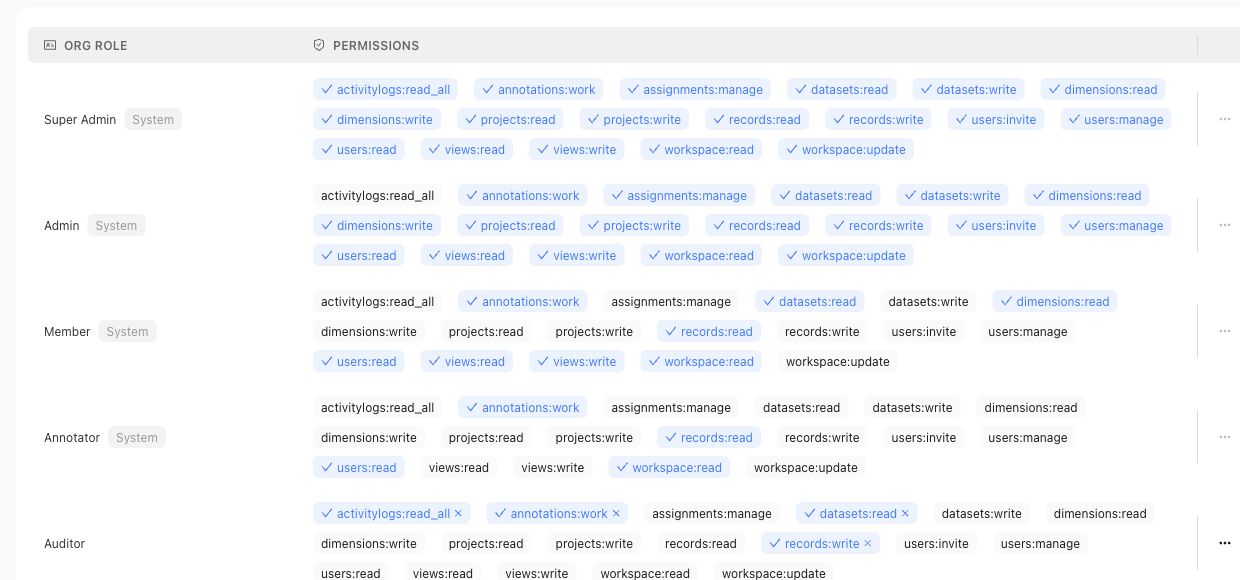
Use the roles table for organization access claims, and use project permission pages for project-level access claims.
## Fields, states, or lifecycle rules
- Main-product project permissions use user or group subjects and code-backed `ADMIN` or `MEMBER` project roles.
- Admin Console roles are workspace roles with permission keys managed through the admin app.
- Reviewer assignments and review ownership are workflow concepts; they should not be treated as workspace role names.
- Approval actions require accountable ownership; AI suggestions do not approve themselves.
## Related objects
Related objects may include workspace users, workspace groups, workspace roles, permission keys, project permission assignments, reviewer assignments, review sessions, approvals, and the correctness artifacts those users can access.
{% example-demo title="Human approval boundary" %}
A domain expert receives a Contribution and can complete its assigned Tasks. The same person is also a member of one Project, so they can inspect that Project's permitted surfaces. Neither fact makes them an organization administrator or grants authority to approve every governed artifact. Read access, Contribution assignment, artifact approval, and Workspace administration from their owning surfaces.
{% /example-demo %}
## Source confidence
Code-backed: this page is grounded in the main product project permission routes and Admin Console role management source listed in source_refs.
## Related task pages
{% related-card-grid title="Related task pages" %}
- [Request an Expert Contribution](/docs/expert-contributions/request-contribution)
- [Build policies and rubrics](/docs/operating-manual/build-policies-and-rubrics)
- [Manage Project Members](/docs/project-settings/project-members)
{% /related-card-grid %}
---
id: expert-contributions.request
title: Request an Expert Contribution
summary: Create a focused benchmark contribution with an accountable expert, clear objectives, selected cases, attachments, and appropriate task components.
kind: task
product_area: expert_contributions
status: stable
updated: 2026-09-07
canonical: /docs/expert-contributions/request-contribution
---
# Request an Expert Contribution
Request a Contribution when a benchmark needs a bounded piece of specialist judgment. The request should make the expert's decision clear, prepare the relevant evidence, and choose only the task components needed to obtain an attributable answer.
## Prerequisites
- A selected project and benchmark.
- An expert eligible for the contribution domain.
- A concrete contribution statement or unresolved correctness question.
- Selected cases, attachments, or scoped statements when the question depends on them.
- Project Context and Reference Materials prepared in Agent Setup; use **Assets → Review Screens** when the Contribution needs reusable expert-facing presentation.
## Steps
1. Open the benchmark and select **Expert Contributions → Contributions**.
2. Choose **Request Contribution**.
3. Complete **Objectives & Missions**. State the decision or knowledge the benchmark needs and select the application domain: Coverage Model, Benchmark Setup, or Evaluation Validation.
4. Complete **Choose Experts** and confirm that each selected expert has the right authority for the mission.
5. Complete **Contribution Components**. Available components are Curation, Comparative, Trajectory, Form, Chat, and Interview. Choose conservative, balanced, or exploratory agent behavior; Comparative accepts two to five candidates and can allow improvement.
6. Designate the relevant Cases. Select exact Case IDs and decide whether the contribution may add Cases beyond that set.
7. Add attachments and scoped statements only when they help resolve the mission. Supported attachment scopes include completed Contributions, Policies, Rubrics, Dimensions, ontology values, Project Topics or Groups, Construction Patterns, and Case candidates.
8. Review the captured attachment snapshot version and hash, generated activities, and checkpoints. Confirm that controlling evidence is frozen and consequential meaning will be reconciled.
9. Send the request and follow its state through Overview, Contributions, or Logs & Status.
## Object and state changes
This task creates a benchmark-scoped Contribution, associates experts, and records missions, application domain, Case designation, attachments, scoped statements, component behavior, and improvement permission. Planning materializes activities such as Case Review, Form, Chat, and Interview. Sending or starting work moves the Contribution toward `READY` or `IN_PROGRESS`; cancellation preserves the record.
## Success criteria
- The Contribution asks one coherent specialist question.
- The selected expert and application domain are appropriate.
- Every case or attachment is relevant to the objective.
- The chosen task types match the judgment required.
- Checkpoints protect decisions that should not be silently inferred.
- Attachment identities, scope statements, snapshot version, and hash are visible.
- The administrator can tell what artifacts may result and where they will be governed.
## Common failure modes
- Asking for general review without a materializable objective.
- Selecting many cases that do not illuminate the same decision.
- Leaving one-time behavior directions outside the Contribution objective, components, or scoped statements.
- Omitting the source or case material needed to explain a judgment.
- Assuming that task completion automatically approves contributed policies or rubrics.
{% example-demo title="Example: focused coverage contribution" %}
The objective asks an expert to decide whether source-freshness and customer-impact should form a distinct coverage slice. The operator selects six cases spanning those facets, attaches the controlling policy, and chooses case review plus a final checkpoint. The request can yield a coverage observation and a scoped rubric without asking the expert to redesign the entire benchmark.
{% /example-demo %}
## Related reference pages
{% related-card-grid title="Related reference pages" %}
- [Expert Contributions](/docs/expert-contributions)
- [Contributed Artifacts](/docs/expert-contributions/contributed-artifacts)
- [Review Screen](/docs/assets/review-screens)
{% /related-card-grid %}
## Related troubleshooting pages
{% related-card-grid title="Related troubleshooting pages" %}
- [Expert Contribution problems](/docs/troubleshooting/expert-contributions)
- [Permissions](/docs/troubleshooting/permissions)
- [Low expert agreement](/docs/troubleshooting/low-expert-agreement)
{% /related-card-grid %}
## Source confidence
Code-backed: the active Contribution composer defines expert selection, objectives, cases, attachments, statements, settings, and contribution components. Exact available components can depend on project and benchmark context.